Dojo
The Dojo tab is where you train your Secretary. It is organized into three sub-tabs: Instruct, Integrations, and Uploads.
Instruct
Configure your Secretary's name, personality, communication style, and custom instructions to customize how your Secretary presents itself to callers.
Integrations
Connect third-party services to extend your Secretary's capabilities. Calendar is available under Essentials, with further integrations capabilities to be released soon.
Uploads
Upload documents and instruction files that your Secretary can reference. A storage gauge shows how much of your allowance has been used.
Secretary Voice
Customize how your Secretary sounds by selecting from a range of voices available in both male and female options. Access the voice picker from the sound wave icon in the top-right corner of the Instruct page.
 Voice picker button
Tap the sound wave icon to open the voice picker. From here you can choose how your Secretary sounds when answering calls. Toggle between Male and Female to browse available voices, then tap a voice to preview it and select Done to confirm.
Instruct
The Instruct sub-tab is the primary place to shape how your Secretary behaves and communicates. From here you can select a personality trait and give your Secretary a custom nickname that callers will hear.
Traits
Traits define the communication style and tone your Secretary uses when interacting with callers. Select the one that best matches how you want to be represented. Only one trait can be active at a time — the currently selected trait appears highlighted.
Traditional
A professional and factual style suited for formal or business contexts.
Playful
A warm, upbeat tone with light humor to put callers at ease.
Gen Z
Fluent in current memes, trends, and internet-native expressions.
Millennial
Internet-savvy and culturally aware with a conversational, relatable tone.
Boomer
Grounded in older slang and familiar social conventions for a classic feel.
Nickname

The Secretary Nickname field lets you give your Secretary a custom name that callers will hear when it answers on your behalf. This adds a personal touch and makes your Secretary feel like a natural extension of you or your brand.
Custom Instructions
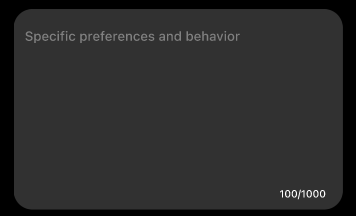
Custom Instructions give you direct control over how your Secretary handles calls beyond the preset traits. Use this field to provide specific guidance — such as how to respond to certain types of callers, what information to collect, or topics to avoid. Your Secretary will follow these instructions in every interaction.
Integrations
The Integrations sub-tab lets you connect third-party services so your Secretary can access relevant context when handling calls. Integrations are grouped by category — Calendar is live under Essentials, with many more categories and services actively being built and released gradually.
Essentials
The Essentials group contains the foundational integration that directly enhances your Secretary's day-to-day awareness. Connecting your calendar allows your Secretary to check your availability, reference upcoming events, and manage scheduling context during calls.
Calendar
Google Calendar · Apple Calendar · Outlook · Calendly · Cal.com
Future Integrations
The following integration categories are actively being developed and will be released gradually. Each category will bring a range of compatible services, giving your Secretary deeper awareness of your workflows and tools.
Communications
In DevelopmentMicrosoft Teams · Slack · Google Contacts · Zapier · Notion
CRM
In DevelopmentHubSpot · Salesforce · Pipedrive · Monday CRM · Attio · Zoho · Odoo
Sales
In DevelopmentShopify · Square · HubSpot · Salesforce · Pipedrive · Zapier
Operations
In DevelopmentQuickBooks · Microsoft Teams · Google Sheets · Slack · Zapier · Odoo
Marketing
In DevelopmentHubSpot · Salesforce · Shopify · Zapier · Notion
Uploads
The Uploads sub-tab lets you provide your Secretary with documents and instruction files it can reference when responding to callers. A storage gauge at the top of the page shows your current usage against your total allowance.
Storage Gauge
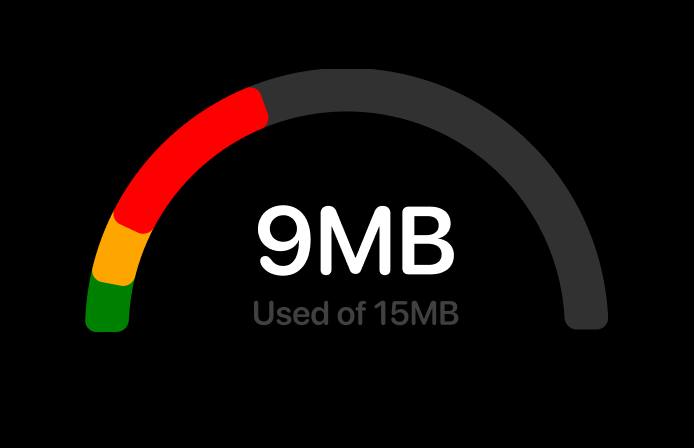
The radial gauge at the top of the Uploads page gives you a clear visual of how much storage you have consumed. The arc transitions from green to yellow to red as you approach your limit, making it easy to see at a glance how much headroom remains.
Documents
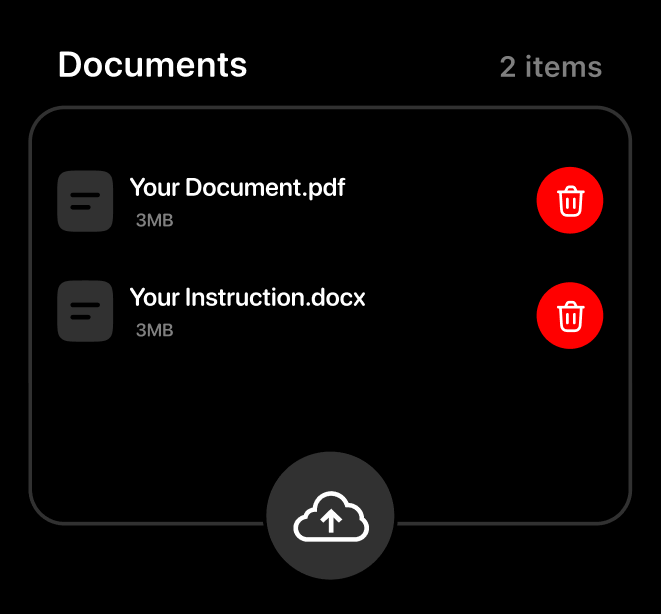
The Documents section is where you upload files that your Secretary actively uses as context during every call. This can include instruction documents, product information, FAQs, scripts, or any reference material you want your Secretary to draw from when speaking with callers.
You can upload as many documents as you need — the only constraint is your total storage allowance as shown by the gauge above. The more relevant material you provide, the better equipped your Secretary will be to handle a wider range of inquiries accurately.
You can add or remove files at any time. Changes take effect immediately — your Secretary pulls all uploaded files fresh at the start of every call, so any updates you make will be reflected the next time it picks up.